The Google Sheets Node allows your assistant to save customer information, search inventory or order statuses, and update spreadsheet rows in real time.
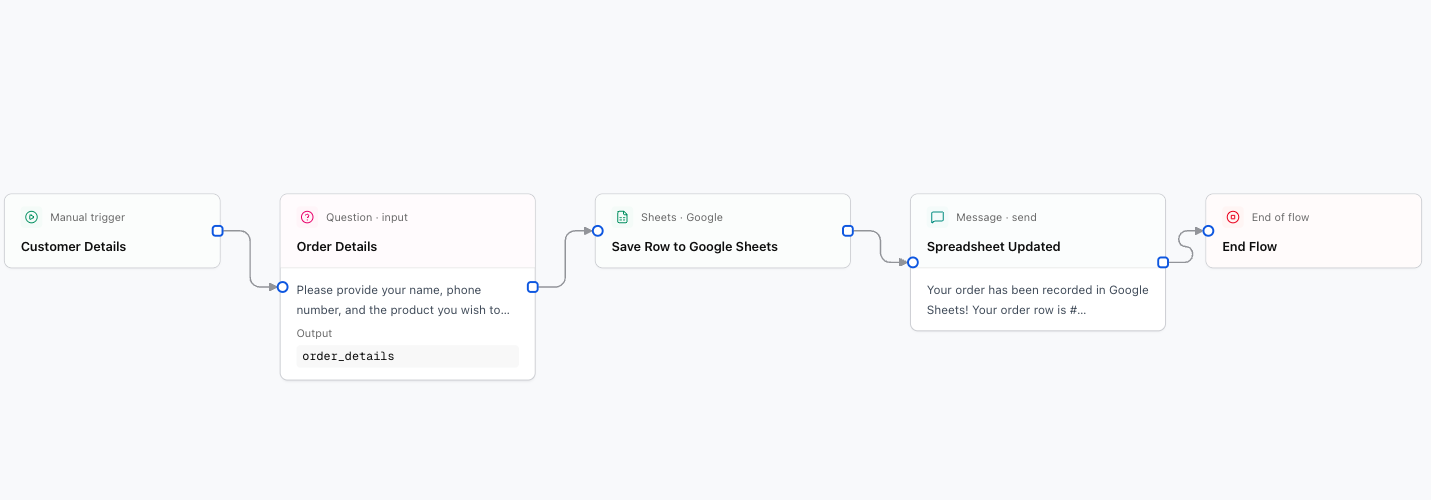
What You Can Do with This Node
- Find rows (
findRows): Look up rows matching a specific phone number, email, or order ID. - Insert rows (
insertRows): Append new customer entries to your sheet. - Update rows (
updateRows): Modify existing columns (e.g. changing status to "Completed"). - Delete rows (
deleteRows): Remove rows matching specific criteria.
Configuration Fields
Your configured Google Service Account connection.
Unique spreadsheet ID found in your browser URL:
https://docs.google.com/spreadsheets/d/1BxiMVs0XRA5nFMdKvBdBZjgmUUqptlbs74OgvE2upms/edit
Name of the tab inside the sheet (e.g. Leads, Sales, Sheet1).
Action to perform: findRows (Find), insertRows (Insert), updateRows (Update), or deleteRows (Delete).
Data to append to the spreadsheet. Keys must match your column names:
[
  {
    "Date": "{current_date}",
    "Name": "{user_name}",
    "Phone": "{user_phone}",
    "Service": "{service_interest}"
  }
]
Search criteria used to find a specific row:
{
  "Phone": "{user_phone}"
}
Name of the variable to store the result for subsequent blocks.
Practical Examples
Example 1: Save a new contact from WhatsApp
When a user finishes submitting their details in the chat, the node appends a new row to your sheet:
- Operation:
insertRows - Spreadsheet ID: Your Google Sheets ID
- Tab:
Leads - Data to insert:
[
  {
    "Date": "{current_date}",
    "Name": "{user_name}",
    "Phone": "{user_phone}",
    "Status": "New"
  }
]
Example 2: Look up an order status
To answer a customer about their delivery status:
- Find the row by tracking number:
{
  "TrackingNumber": "{tracking_number}"
} - In the next message, reply:
Hi {sheets_result.rows.0.values.Name}, your order status is: {sheets_result.rows.0.values.Status}.
Important Permission in Google Drive
Open your Google Sheet, click Share, and add your service account email (ending in @...gserviceaccount.com) with the Editor role.