The Google Docs Node lets you read document content, append notes at the end of a file, or generate contracts and quotes by automatically replacing text tags.
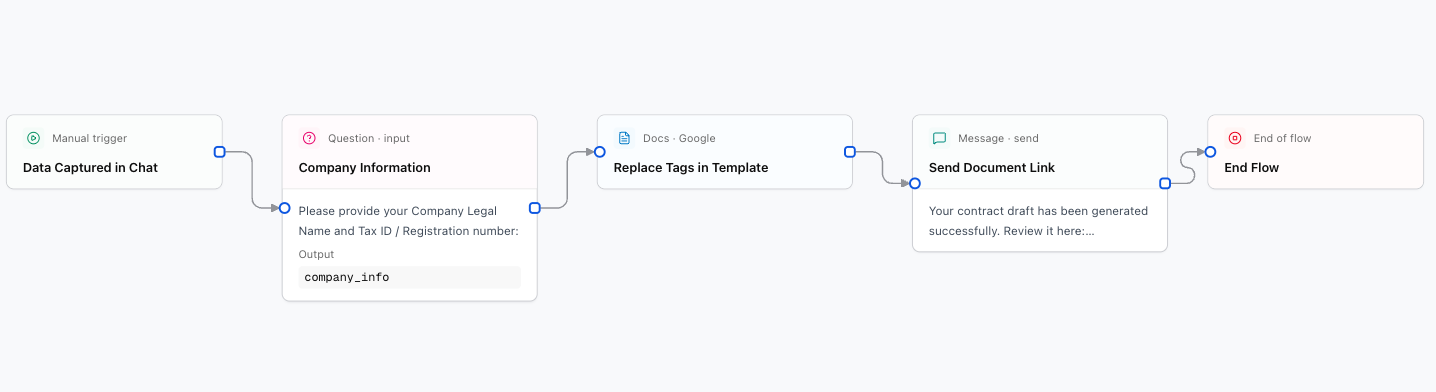
What You Can Do with This Node
- Read document (
readDocument): Extract text from a Google document so your AI assistant can analyze it or answer questions about it. - Append text (
appendText): Write new notes, logs, or summaries at the end of an existing document. - Replace text (
replaceText): Find keywords in a template (such as[CUSTOMER]) and replace them with real conversation data.
Configuration Fields
connectionIdstringrequired
Your configured Google Service Account connection.
documentIdstringrequired
Unique document ID from your browser URL:
https://docs.google.com/document/d/195j9eDD3thA495vD0KKC508YPNjFOO0GX64Zo2PP3hM/edit
operationenumdefault: replaceText
Action to perform: readDocument (Read), appendText (Append text), or replaceText (Replace text).
searchTextstringoptional
The tag you placed in your Google Docs template, for example: CUSTOMER_NAME or [CUSTOMER_NAME].
replaceTextstringoptional
The real value that will replace the tag, for example: {user_name}.
textstringoptional
Text to add at the end of the file when using the appendText operation.
outputVariablestringdefault: docs_result
Name of the variable where the operation result will be stored.
How to Create Personalized Documents Step by Step
- Create your template in Google Docs: Write your contract or proposal and insert easy-to-spot tags, for example
[CUSTOMER_NAME],[PRICE], and[DATE]. - Share the document: Click Share in Google Docs and add your Google service account email with the Editor role.
- Configure the node: Add the nodes needed in your flow to replace each tag with the information collected from the user.
- Send the result: Notify your customer by WhatsApp or email that their document is ready.