Nodes are the visual blocks you drag and connect on the Convoflow canvas. Each node performs a specific task: sending a message, asking a question, querying a database, charging a customer, or making an AI-powered decision.
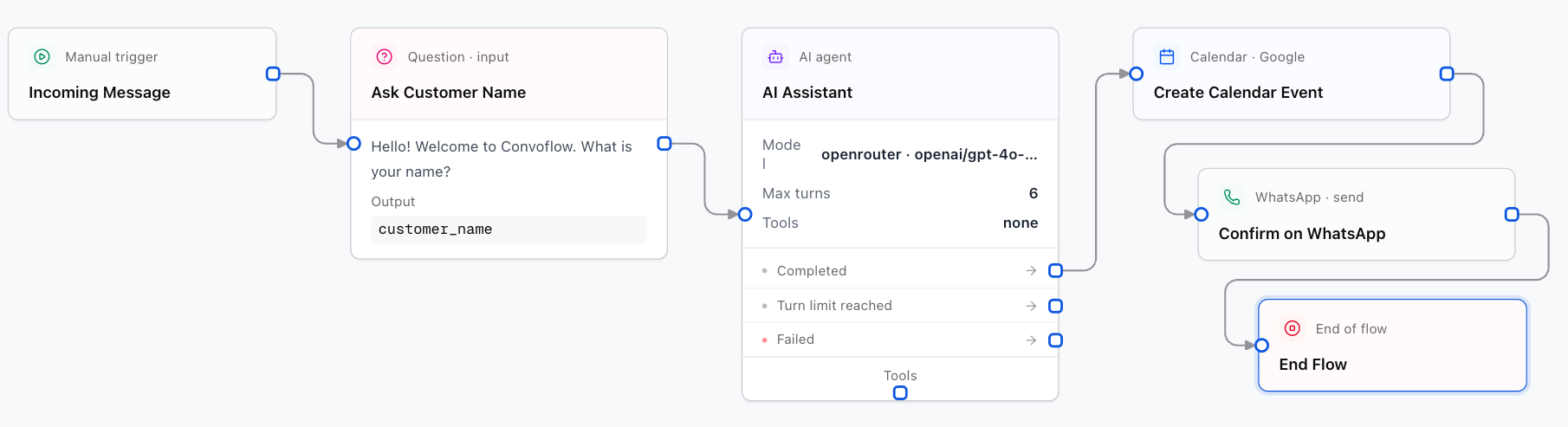
How Nodes Work in the Designer
1. The Visual Canvas and Designer
Convoflow's Designer helps you build and modify flows quickly. This documentation serves as your reference guide when you click on a node in the canvas to adjust its properties.
2. Reusing Conversation Data
Insert values collected earlier into messages or emails using curly braces {}:
Hello {user_name}, your booking is confirmed for {appointment_date} at {appointment_time}.
Complete Node Catalog
Learn how flows start, finish, and activate via WhatsApp, Email, or Cron schedules.
Send text messages, media, and official WhatsApp interactive buttons.
Collect user answers with auto-validation and manage workflow variables.
Autonomous agents with memory, goal planning, and visual tool sub-flows.
Answer queries from PDF manuals, browse the web, or extract text with Document AI.
Branch flows using logical rules, AI intent conditions, or multi-case switches.
Transfer chats to human agents, request manager approvals, and assign CRM roles.
Send internal sales alerts, purchase notifications, and channel updates.
Collect payments with Stripe and Recurrente with interactive WhatsApp CTA buttons.
Send SMS OTP codes and verify official IDs with biometric KYC.
Manage Google Calendar, Cal.com bookings, or use autonomous agentic calendar loops.
Read, insert, update, or delete spreadsheet rows in real time.
Generate documents, contracts, and proposals by replacing text templates.
Send personalized emails with design templates and file attachments.
Sync contacts with HubSpot, check Shopify or WooCommerce orders, Airtable and Notion.
Store data in internal Convoflow tables, query PostgreSQL, Supabase, or run JavaScript.
Connect your flow to any external REST API or webhook.