The Designer allows you to define your own AI flows with just a few initial instructions. Instead of dragging and connecting every single block manually from a blank canvas, you can describe in plain language what assistant you want to build, and the Designer will create, structure, and connect the nodes directly on the visual canvas.
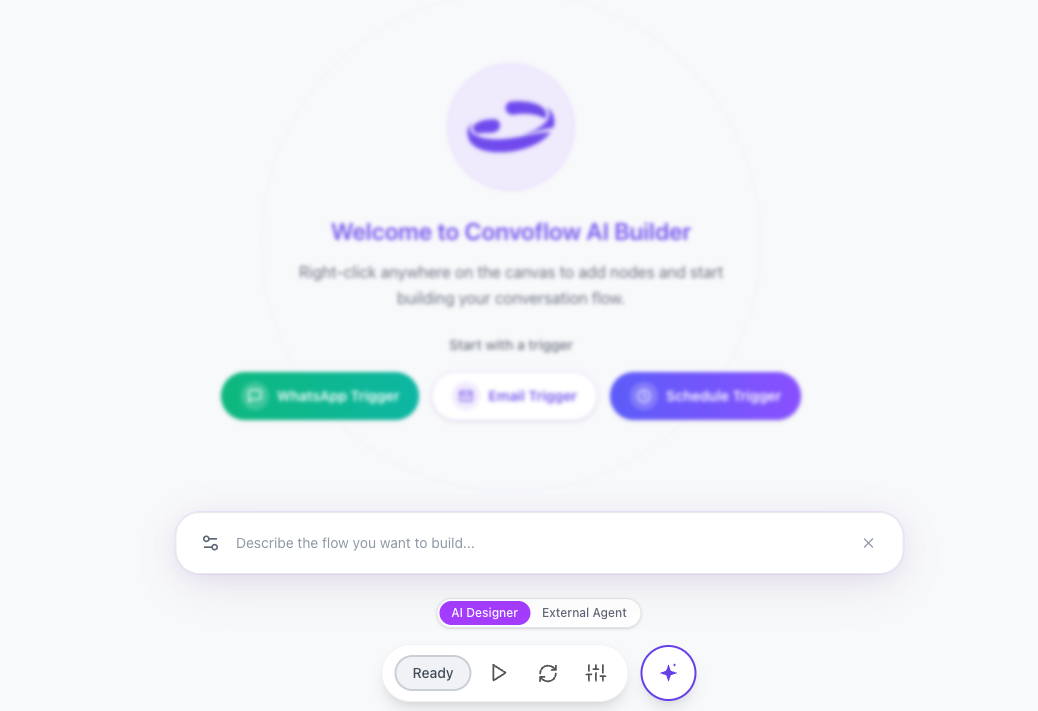
How the Designer works for the user
Interacting with the Designer is as simple as chatting with an automation specialist:
1. Initial natural language instructions
Describe the overall goal of your assistant, the data it needs to collect, and the tools it connects to. For example:
"Create a flow to capture leads via WhatsApp. Ask for their name, email, and company, check availability in Google Calendar to schedule a demo, and save the data in Google Sheets."
2. Automatic plan and visual building
When receiving your prompt, the Designer:
- Defines a clear, readable action plan.
- Inserts the required nodes onto the canvas (messages, questions, Google integrations, or payments).
- Wires success paths and error recovery routes.
- Configures initial parameters and descriptive variable names.
3. Continuous iteration and refinement
You can keep chatting with the Designer to update your flow at any time:
- "Make the greeting tone more friendly and formal."
- "Add a condition so that customers in Mexico see prices in MXN and all others see USD."
- "Send an alert to our
#salesSlack channel whenever an appointment is confirmed."
4. Full visual control
The Designer does not replace the canvas—it empowers it. Everything created by the Designer remains fully visible and editable. You can drag nodes, tweak text, and edit properties manually whenever you prefer.
Best practices for prompt instructions
For best results on your first try, we recommend including:
- Input channel: Specify if your assistant communicates over WhatsApp, web chat, or email.
- Data to collect: Clarify the exact details you need from the user (name, phone, interest, etc.).
- Tools to integrate: Mention any third-party services involved (Google Sheets, Calendar, Stripe, HubSpot, etc.).
- Business rules: Mention key requirements early (business hours, attempt limits, human handoff conditions).