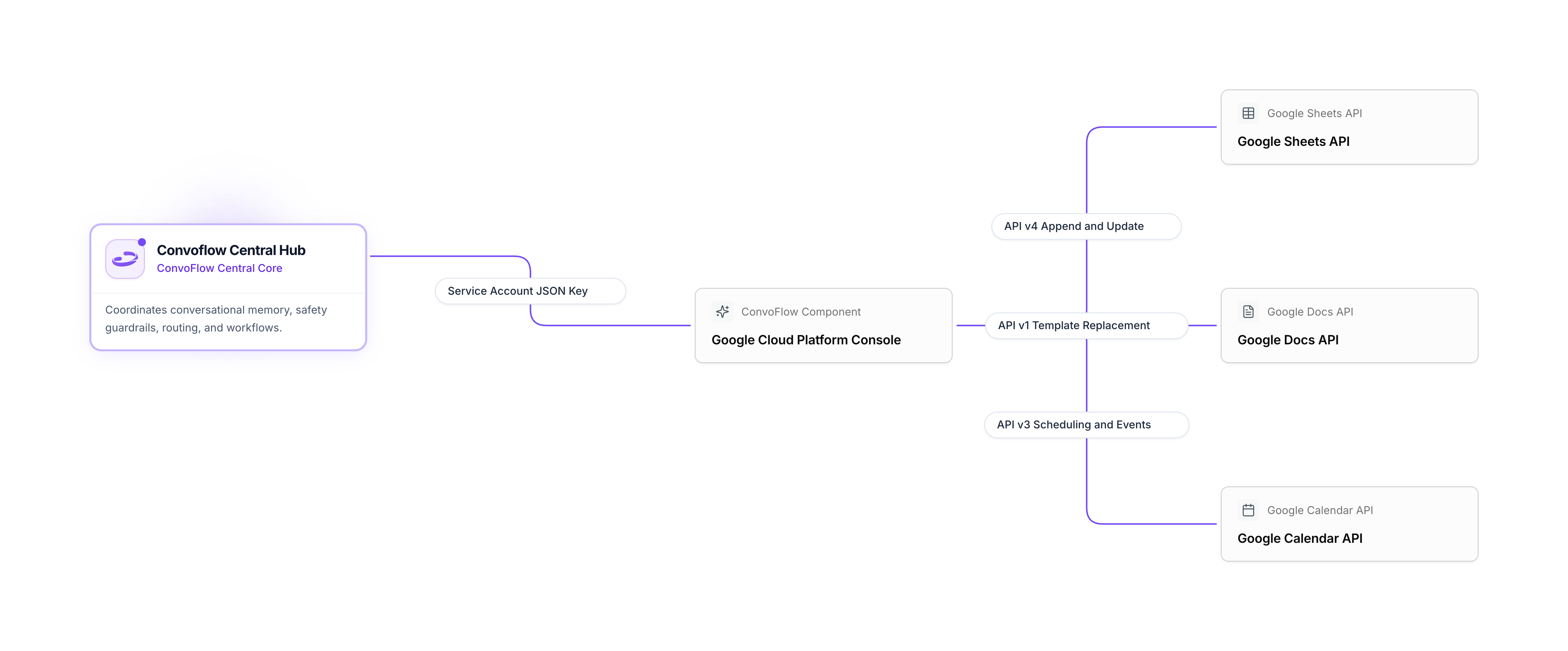
The Google Service Account connection lets your flows interact directly with your Google tools:
- Google Sheets: Save new leads, update inventory, and read data.
- Google Docs: Generate contracts or documents by filling templates.
- Google Calendar: Check available times and book appointments with a Google Meet link.
Configuration Parameters
Paste the full contents of the .json file you download from Google Cloud (it includes the private key and service email).
Optional Google Workspace corporate email on whose behalf you want events or documents to be created.
Step-by-Step Guide to Connect Google
1. Open Google Cloud Console
- Go to the Google Cloud Console.
- Sign in with your Google account and create a new project (e.g. Convoflow Automations).
2. Enable Google Tools (APIs)
In the Google Cloud search bar, find and click Enable for each of these tools:
- Google Sheets API (spreadsheets).
- Google Docs API (documents).
- Google Calendar API (appointment scheduling).
- Google Drive API (file permissions).
3. Create a Service Account
- Go to IAM & Admin > Service Accounts.
- Click Create service account.
- Enter an identifier name (e.g.
convoflow-assistant) and click Done.
4. Download the JSON Key
- In the service account list, click the email that was just created (it will look like
convoflow-assistant@your-project.iam.gserviceaccount.com). - Open the Keys tab.
- Click Add key > Create new key.
- Choose the JSON format and press Create. A file will download to your computer.
- Open that file in any text editor, copy all of its contents, and paste it into the Service Account JSON field in Convoflow.
5. Grant Access to Your Documents and Calendars
This is the most important step to make everything work:
- For Google Sheets and Google Docs: Open your sheet or document, click Share, paste the service account email (the one ending in
...iam.gserviceaccount.com), and grant Editor access. - For Google Calendar: Open Google Calendar on your computer, go to the settings of the calendar you will use, open Share with specific people, and add the service account email with permission to Make changes to events.
Frequently Asked Questions and Fixes
Cause: You have not shared the spreadsheet or calendar with the service email.
Fix: Copy the client_email from your JSON file and share it with Editor access on your Google Drive file.
Cause: The API is not enabled in Google Cloud.
Fix: Go to the API library in Google Cloud and press Enable on Google Sheets API or Google Calendar API.