Every workflow in Convoflow needs a starting point and a conclusion. In addition to manual or chat-initiated conversations, you can trigger flows automatically via Triggers when an external event occurs.
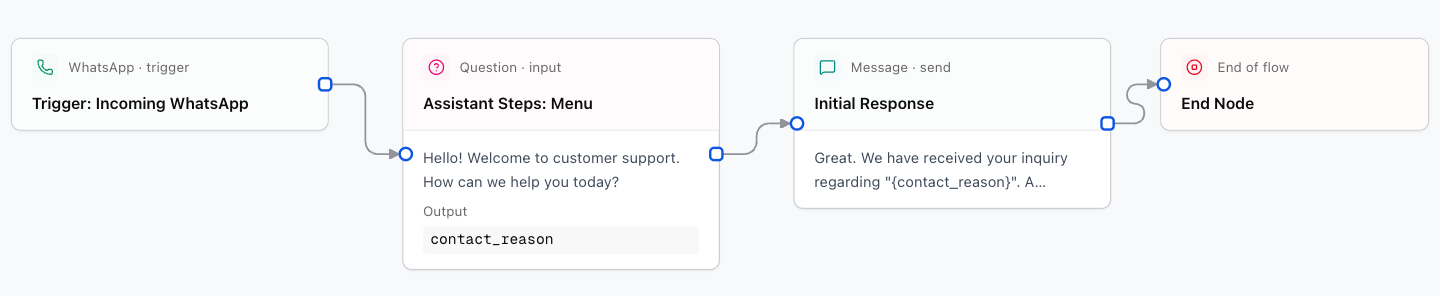
1. Start Node
Marks where execution begins. When a user interacts with your assistant, the workflow starts from this node and follows the connected path.
Designer Settings:
- Label: Descriptive name to identify the node on your canvas (e.g., Customer Service Start).
Design Tip: You only need one Start Node per main flow. Connect it to the first actionable node (such as a greeting or question).
2. End Node
Marks the definitive completion of the flow. When the conversation reaches this node, the current process ends.
3. WhatsApp Trigger
Wakes up the flow automatically when an incoming message arrives at your WhatsApp number.
Designer Settings:
Select the WhatsApp connection to listen on.
Keyword or substring required to activate this flow (e.g. hello, pricing, support). If empty, triggers on any incoming message.
Variable name where the incoming message text is stored.
Variable name where the sender phone number is stored.
4. Email Trigger
Starts the flow automatically when an incoming email matches specified filters.
Designer Settings:
Filter emails from a specific sender or domain.
Text that must appear in the email subject.
Variable storing the received email body content.
5. Schedule Trigger
Runs a flow periodically based on a defined schedule or interval.
Designer Settings:
Schedule mode: daily_time (daily at specified time), interval_minutes (every X minutes), or cron.
Your local time zone for schedule evaluation.