The Google Calendar Node lets your assistant book appointments, check free time on your calendar, and automatically generate Google Meet video links to send to your customers.
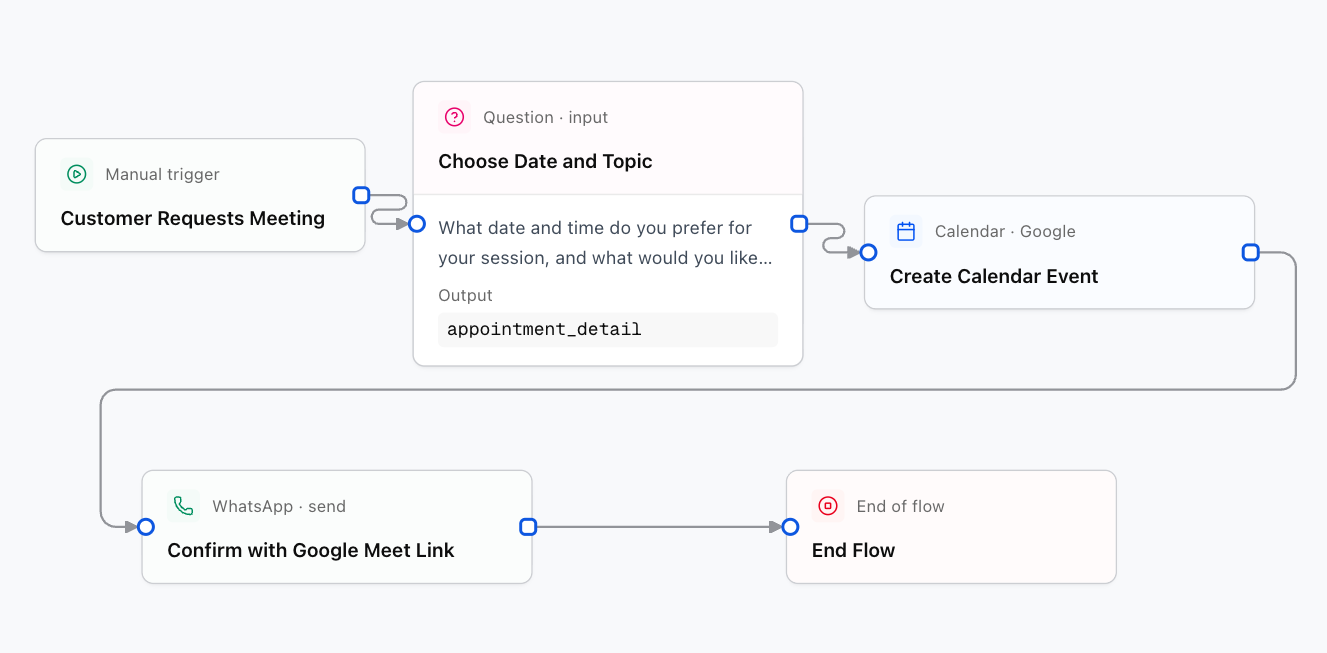
What You Can Do with This Node
- Create an event (
createEvent): Book a meeting with date, time, customer name, and a Google Meet link. - Check availability (
listEvents): Review scheduled meetings in a date range so you do not overlap appointments. - Update an event (
updateEvent): Change the time or details of an existing appointment. - Cancel an event (
deleteEvent): Cancel a calendar appointment if the customer reschedules or cancels.
Configuration Fields
Your configured Google Service Account connection.
Use primary for your main calendar, or enter the email address of the calendar you want to manage (e.g. sales@yourcompany.com).
Action to perform: createEvent (Create appointment), listEvents (Check availability), or deleteEvent (Cancel appointment).
Event title that will appear on your calendar (e.g. Initial consultation with {user_name}).
Meeting start date and time (e.g. {start_date}).
Meeting end date and time (e.g. {end_date}).
Event time zone (e.g. America/Mexico_City, America/Bogota, America/Santiago, Europe/Madrid).
Enable this option so Google automatically creates a virtual Google Meet room.
Emails that will receive a formal Google calendar invitation:
[
  { "email": "{user_email}", "displayName": "{user_name}" }
]
How Automatic Scheduling Works
- The customer requests a slot: "I want to book a demo for Friday at 11 am".
- The assistant validates the date: It checks that you have that slot free on your calendar.
- It creates the appointment: It registers the meeting and includes the Google Meet room.
- It confirms to the user: It immediately sends a message with the details:
Done {user_name}! Your appointment has been booked successfully.
Google Meet link: {calendar_res.hangoutLink}